Purl Pal
Knitting and crochet counters
Purl Pal counts your rows and rounds for knitting and crochet. It keeps the count, reminds you what comes next, holds your pattern and keeps your yarn and needles in one place, so you can put the phone down and get on with the work.
A look at it
Counting
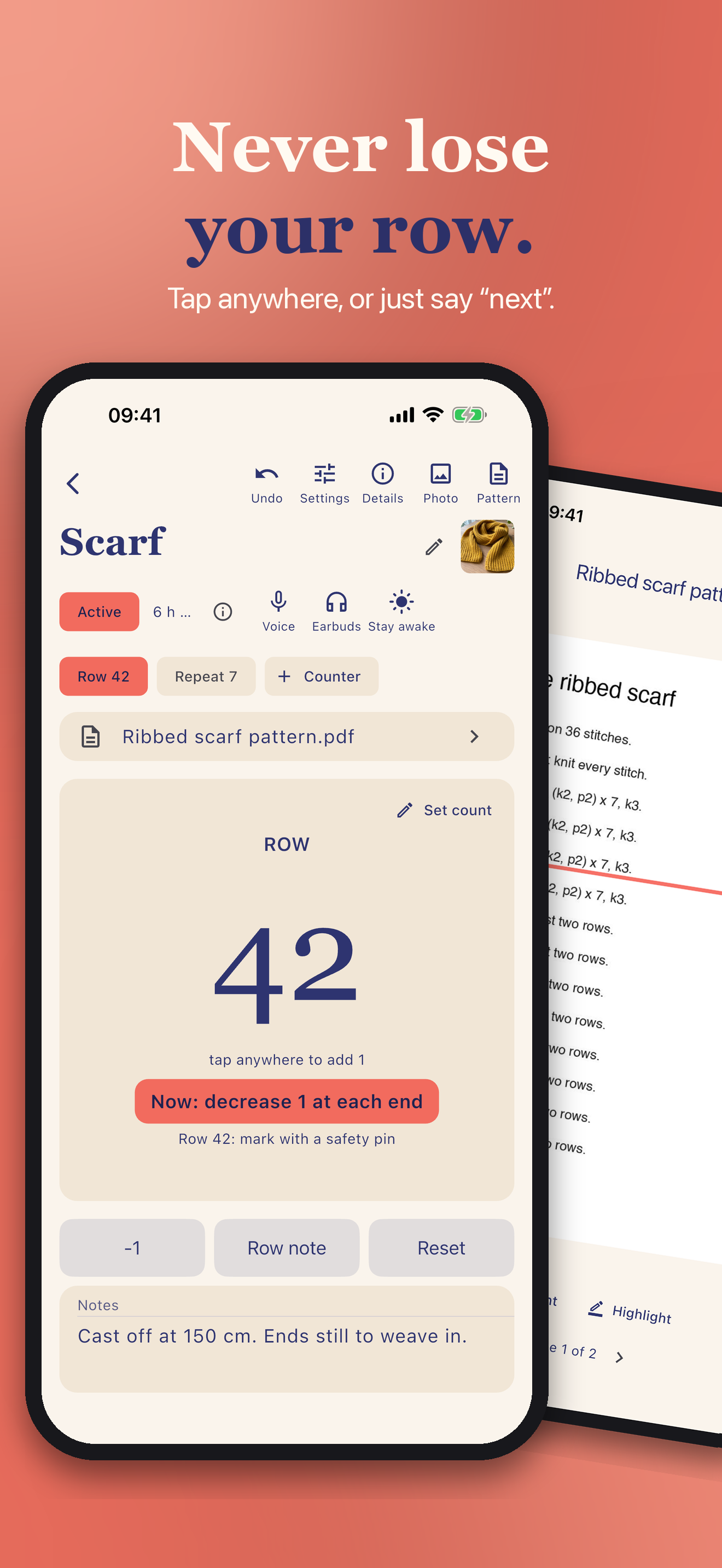
- Tap anywhere on the screen to add a row. It works with one thumb while your hands are busy with yarn. Made a mistake? Tap -1, or undo. Starting over? Reset, with a check first so you don't wipe a count by accident.
Counters
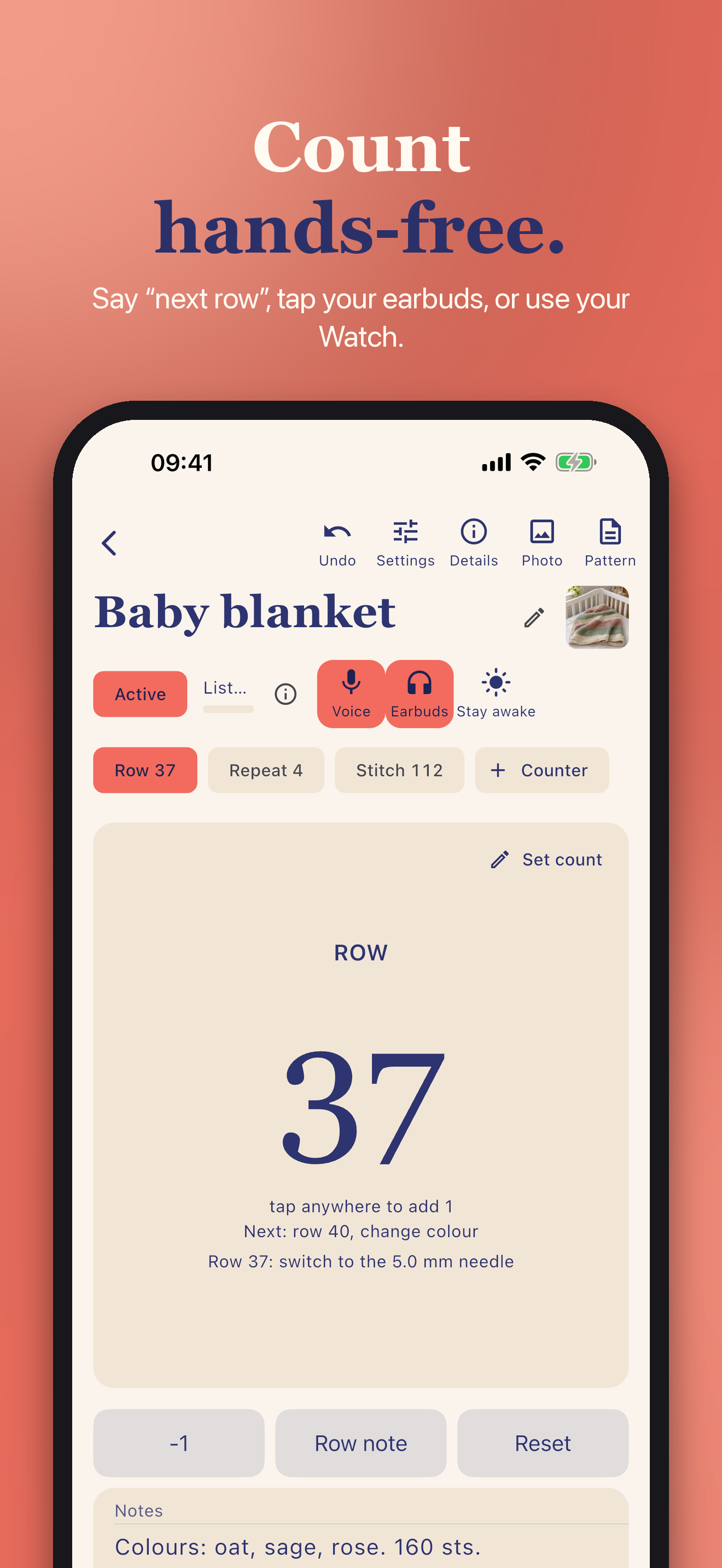
- Each project has several counters: rows, rounds, repeats, or your own name.
- Link a repeat counter to your row counter. It adds one every few rows, so you only ever tap the rows.
- Row reminders: "at row 24, decrease", once or every few rows. The next one shows under the count and the one due now stands out.
- Add a note to any single row.
- A history shows every step you counted, so you can see where a count went wrong.
- Keep the screen awake while you work, if you want it.
Start again
- Swipe a project to begin the next piece with the same counters, reminders, yarn and needle. The new name counts up for you.
- Reset keeps the settings of the project, so a second sock starts the way the first one did.
Stash and tools
- A library for your yarn: brand, colourway, fibre, weight class, length and skeins.
- Your needles and hooks, by size.
- Pick them from recent chips instead of typing. Note the gauge and the yarn used on each project, so the next one starts from what worked.
- Search across yarn, tools and projects.
- Finished projects collect in a gallery, so you can look back at what you made and what it took.
Notes and patterns
- Write notes on each project: the changes you made, the hook you settled on, what to do differently next time.
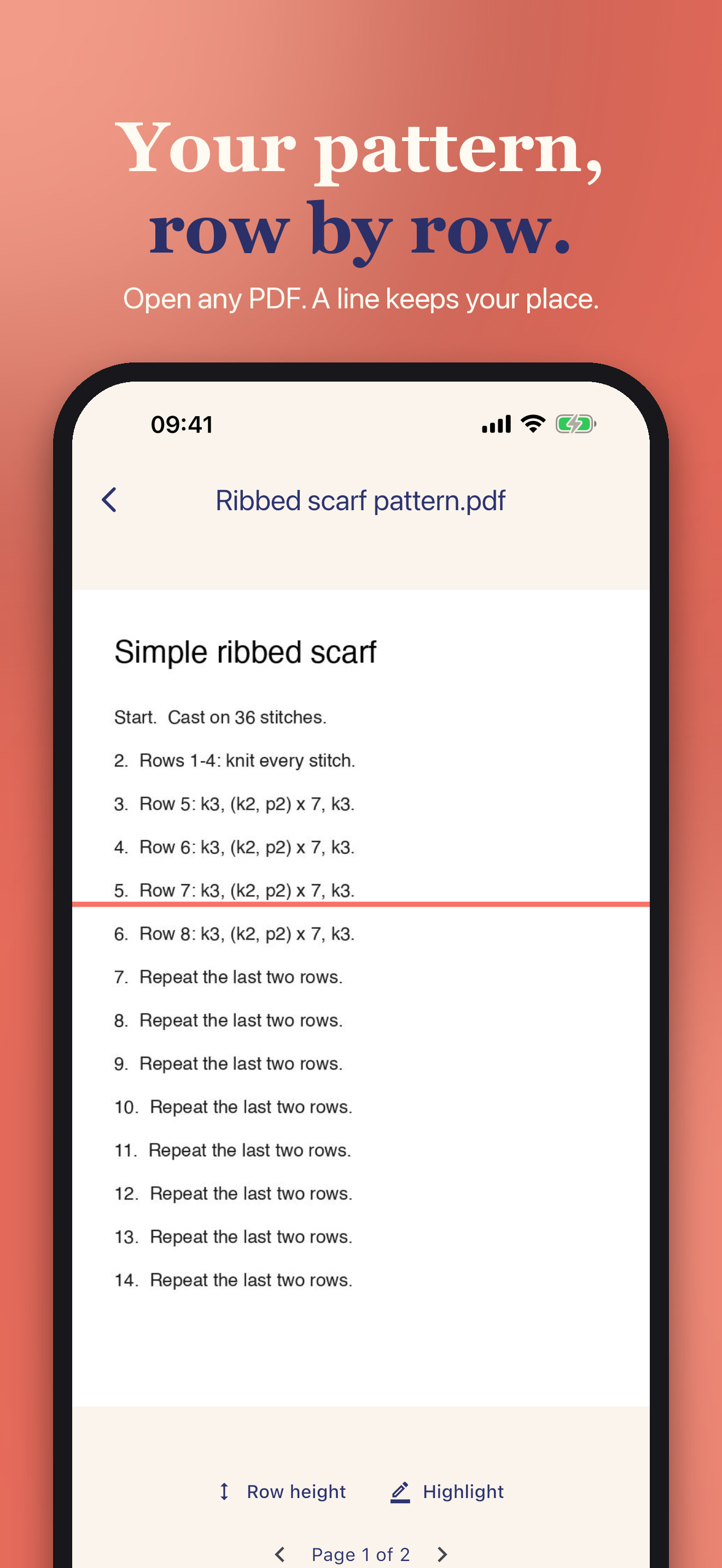
- Attach a pattern as a PDF and read it inside the app. Drag a row marker down the page to hold your place. The page and position are saved, so you come back to the same line.
- Add a photo of the project, taken with the camera or picked from your library.
On iPad and Mac
- Fills an iPad, with the counter beside your pattern, so both are in view at once. Also runs on a Mac with Apple silicon, where you can count with the Space bar. The Watch, Lock Screen and earbud parts are for iPhone.
Widget and Apple Watch
- Put a counter widget on your Home Screen and tap it to jump straight to the project.
- Count from your Apple Watch with +1 and -1 buttons, so the phone can stay in your bag.
- Counting by voice or through your earbuds means you count without touching anything, useful when your hands are full.
Your data stays yours
- Your data stays on your devices. Patterns and photos are copied into the app. If you turn on iCloud sync, they go only to your own iCloud, never to us.
- The app does not collect data and has no analytics or tracking.
- Backups are made automatically after changes and every week, and the last five are kept. Back up now to a file, or restore from a file. A short intro on first launch shows the main moves, and you can replay it any time.
Where to get it
On the App Store for iPhone and iPad. An Apple Watch app where the features below say so.
Questions or a problem: support. What it does with your data: privacy.